


Frequently Asked Questions
Frequently Asked Questions – please read this page for general information about the use of our League Site.
If your question is not answered here, feel free to contact our admins on the ETF2L Discord server



Overview
- How To: Create an account
- How To: Register a team
- How To: Create a recruitment post
- How To: Remove/Add a player from/to your roster (during a running competition)
- How To: Schedule a game and add it to Calendar
- How To: Play a game and submit the result
- How To: Borrow an ETF2L League Server
- How To: Remove your team
- How To: Upload a Demo
- Issue: Opponent did not show up or broke a rule
- Issue: Opponent is marked as “Dropped”
- Issue: Problems reaching your opponent
- League Dates (Schedule & Game Deadlines, League Events)
- Applying for a specific division for a ETF2L Season
How To: Create an account
- Notice: Only registered users are able to use the Forum, register teams and vote on polls.
- Notice: Once registered, SteamIDs can only be changed by admins.
- Create an account by clicking the green “Log in with Steam” button on the top right. You will have to enter your correct email address.
How To: Register a team [any team type]
- Create an account if you haven’t already.
- After you are logged in, you are able to register your team at the Dashboard. [Link]
- Once your team is registered, it will be shown at our Teams List. [Link]
- You are able to invite existing users to your team’s roster at the Team Admin Menu. [Link] and click “Edit Roster” for your team
- Now the invited player has to accept the invitation to the team. [Link]
- If everything is correct, the player will be added to your team’s roster after 24 hours. Until then he will count as a merc for your team.
- You are able to sign up your team to a league or cup for your team type when we open signups (If you have the minimum amount of members and at least 2 contact metods entered). [Link]
How To: Create a recruitment post
- Create an account, and if you are looking for players, a team, if you haven’t already.
- After you are logged in, you are able to make a recruitment post at the Dashboard. [Link]
- Your recruitment post will then appear on the Recruitment section on the site. [Link]
- After you find a team or the players needed, the recruitment post can be closed from the Dashboard.
How To: Remove/Add a player from/to your roster
- As team leader you will have to enter your correct Steam ID at your profile first. [Link] Steam ID’s can only be changed by contacting an admin.
- You are able to invite existing users to your team’s roster at the Team Admin Menu. [Link] and click “Edit Roster” for your team
- Now the invited player has to accept the invitation to the team. [Link]
- If everything is correct, the player will be added to your team’s roster after 24 hours. Until then he will count as a merc for your team.
- Every player is allowed one team switch per competition.
How To: Schedule a game and add it to Calendar
- All Fixtures of active competitions can be found on your ‘My Matches’ page [Link] and on your team’s profile.
- Make sure you have selected your available playing days in the ‘My Teams’ page [Link] and clicking on ‘Edit Availability’ for your team.
- Your fixture will be generated for you and the date will be set. You can always contact the opponent’s leader to edit the date set.
- By clicking on your opponent’s team name, you will find their contact information. Be sure you talk about all relevant aspects like date, time, server and mercs
- If you make an important comment on the match page of a fixture, be sure to click the “challenge” checkbox under the comment field, so the comment will be mailed to the opponent’s leaders.
- Once a date is set, the fixture will be shown at the Calendar. [Link]
How To: Play a game and submit the result
- Contact your opponent’s team leader on the day the game is supposed to take place and check if all is fine.
- Trade the server IP and password.
- Meet on the match server at scheduled date and time.
- When all players connected to the server, team leaders will have to make a status screenshot, showing the SteamID’s of all players. (type status in the console and make a screenshot)
- Start playing the game and make a scoreboard screenshot at the end of every map. (Exception: cp_gravelpit, which needs a screenshot for every attack/defence round (Example: [Link] )
- After the game is finished, one team leader has to submit the result at the Dashboard [Link] (you will have to upload all screenshots, 1 status, and 1 for each map). Notice: Missing screenshots can be added through the “Add Screenshots” page. [Link]
- If your opponent submitted the scores and screenshot, you can verify the results. Once results are verified they will be shown at the Fixtures Page. To verfiy a result: Go to the matchpage, and make sure the scores and screenshots are correct. If so, click the “Verify” button on the matchpage.
- If results are not verified after one week, an admin will check the scores and SteamIDs and verify them if they are correct.
How To: Borrow a server for your ETF2L official
- ETF2L does not currently host any TF2 servers; your best bet is using serveme.tf. If you are not familiar with serveme.tf and server management, we suggest you take a look at the guide [Link].
How To: Remove your team
- In the case your team died/stopped playing please contact an admin on Discord.
- We will set the team’s status to “dropped” and remove it from any active competitions.
How To: Upload a demo
- Upload your demo to the site. [Link]
- After an admin has verified your demo, it will appear on our Demo Section. [Link]
Issue: Opponent did not show up or broke a rule
If your opponent did not show up for a match do not enter the default win yourself. Only admins are supposed to enter default wins. To claim a default win, you can contact an admin through Discord, enter #admin_requests and click the L emote under Aoshi’s message.
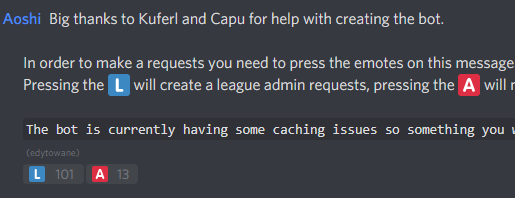
Link the match page to the admin and show him screenshots of the scoreboard and status including some kind of timestamp (e.g. upload the screenshot to your Steam profile or open the Steam overlay that shows a clock when you take the status screenshot) or a screenshot of a conversation where your opponent clearly states that he forfeits the game. Match comments stating the opponent forfeits the match are usually the best proof.
The same applies if your opponent broke a rule. Contact an admin through Discord and provide him with proof that your opponent broke a rule. The best proof is usually an STV or POV demo from the match.
Issue: Opponent is marked as “Dropped”
- Regular League Game: If a team drops during a Season, their results will be deleted and won’t count in the Tables
- Cup Game: A default win will be entered for you
Issue: Problems reaching your opponent
- If you have trouble reaching your opponent to schedule a match, you are supposed to use the Challenge System on the match page: Simply tick the challenge checkbox under the comment field and write a comment with your preferred dates and suggestions. The posted comment will be emailed to the opposition leader.
- Make sure you use the ‘My Matches’ page [Link] to propose a date and time.
- If you suggest a matchdate and your opponent does not respond, we will look at it and most likely (as long as it’s within reason) set the game to the date you suggested.
- Notice: Set default dates will not be changed unless an admin accidentally booked your team for two matches at the same time. In that case please contact an admin on Discord.
League Dates (Schedule & Game Deadlines, League Events)
All published League Dates can be found on our Events Page [Link].
Applying for a specific Tier for a ETF2L Season
When you apply for a Season, you can choose which Tier you would like to be entered for. If your team is new, or missed out on promotion in the last Season, you must justify why your team belongs in the Tier you are applying for.
In order to do so, you need to start playing games against opponents in the Tier you want to be playing in next season. Collect screenshots from these games and be prepared to submit them when signing up to [email protected].
New teams without any League experience should apply to Open, where no screenshots are necessary.








 content rss
![[Link]](https://etf2l.org/images/screenshots/2013/08/43593_15125_15095_map_3_1.jpg)